 DailyWall
Some of the most useful hidden iPhone features are: touch and hold the space bar to move the cursor, Live Text to copy text from photos, Back Tap to run an action by tapping the back of the phone, Send Later in Messages, locking apps with Face ID, the charging limit on newer models, and linking Lock Screens to Focus modes. Most are in Settings, and searching Settings for the feature’s name is the fastest way to find them.
Hidden iPhone features aren’t really secret; they’re just buried in menus most of us never open. Apple adds dozens of small tools every year, and only a few get a spot in the keynote. This list collects 30 hidden iPhone features and tricks that are genuinely useful day to day, not party tricks: faster typing, smarter photos, a button on the back of your phone, messages you can schedule, apps you can lock, a battery you can protect and a Lock Screen that does more than show the time. Each tip notes roughly which iOS version introduced it, because menus move around between releases. If something isn’t where we say, search for its name in Settings; that almost always finds it.
Before you start: check your iOS version
Most tricks below work on any recent iPhone, but some need a particular version of iOS or a newer model. To check yours, open Settings → General → About and look at iOS Version. Updating in Settings → General → Software Update unlocks the newer features, assuming your iPhone supports the latest release.
One more thing that saves time: Settings has a search field at the top. Menus have moved several times in recent years (for example, from iOS 18, most per-app settings live under Settings → Apps), so if a path below doesn’t match your phone exactly, type the feature’s name into that search field.
Typing tricks (1–6)
You type on your iPhone every day, so these small tricks pay off fastest.
Tick the steps as you go
Camera and photo tricks (7–12)
Your camera can read, cut out and level things, if you know where to look.
Tick the steps as you go
Back Tap and accessibility gems everyone can use (13–18)
The Accessibility settings are full of features that are useful for everyone, not only people with specific needs. These are some of the best.
Tick the steps as you go
Messages, calls and sharing tricks (19–23)
Small changes to how you message and share that save awkward moments.
Tick the steps as you go
Privacy and battery tricks (24–27)
A few settings that protect your data and your battery, and that most people never touch.
Tick the steps as you go
Lock Screen and Home Screen tricks (28–30)
The screens you look at most have some of the most underused features. For a complete walkthrough, see our guide to customizing your iPhone Lock Screen.
Tick the steps as you go
The Shortcuts app: the most powerful hidden feature
If you only explore one app from this list, make it Shortcuts. It comes with every iPhone, and it lets you chain actions together and run them with a tap, with Siri, from Back Tap or automatically. A morning shortcut can turn on a Focus, read the weather and open your planner; an evening one can set an alarm and turn on Low Power Mode.
Automations are where it gets really useful: a shortcut can run by itself when you open or close an app, or at a time of day. How you set them up changed in iOS 27, where the trigger now lives inside the shortcut instead of a separate Automation tab; our post on iOS 27 Lock Screen tips explains what moved. If you like to squeeze more out of your day, our productivity tips pair well with a couple of well-chosen shortcuts.
Put your own notes on your Lock Screen with DailyWall
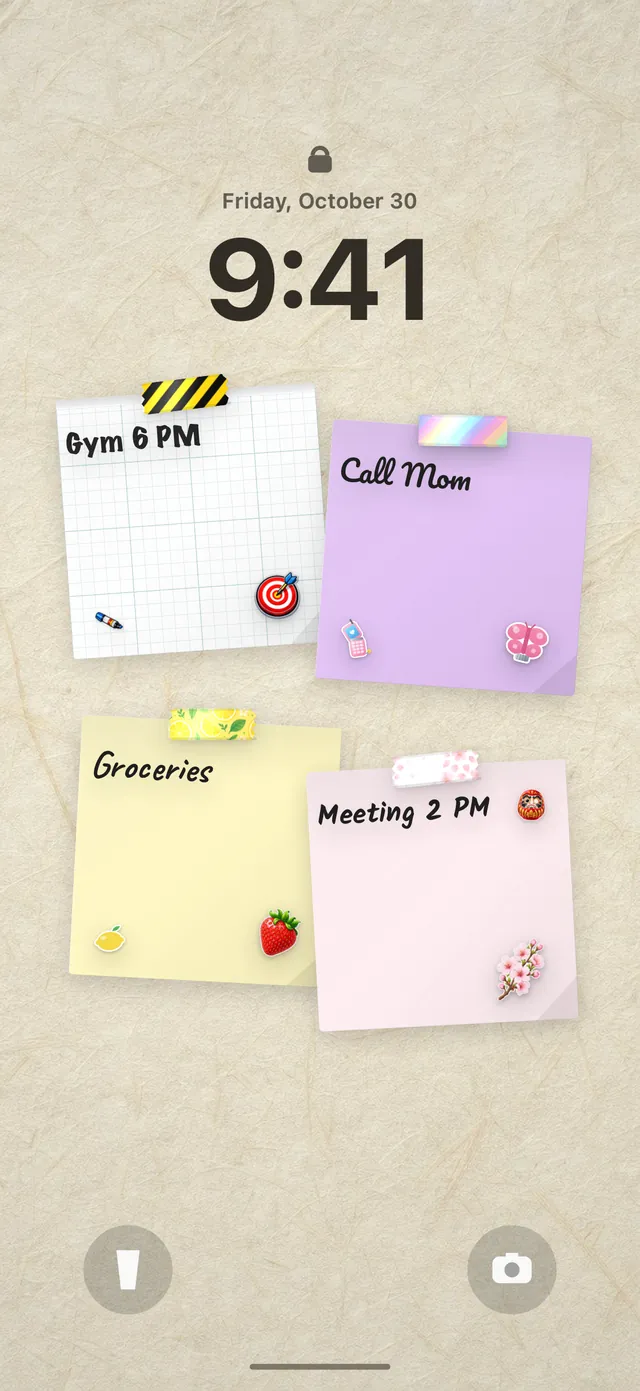
Here’s one more trick that surprises people: your Lock Screen wallpaper can show your own notes and to-do list, and update by itself when you change them. Apps can’t set the wallpaper directly, but a Shortcuts automation can.
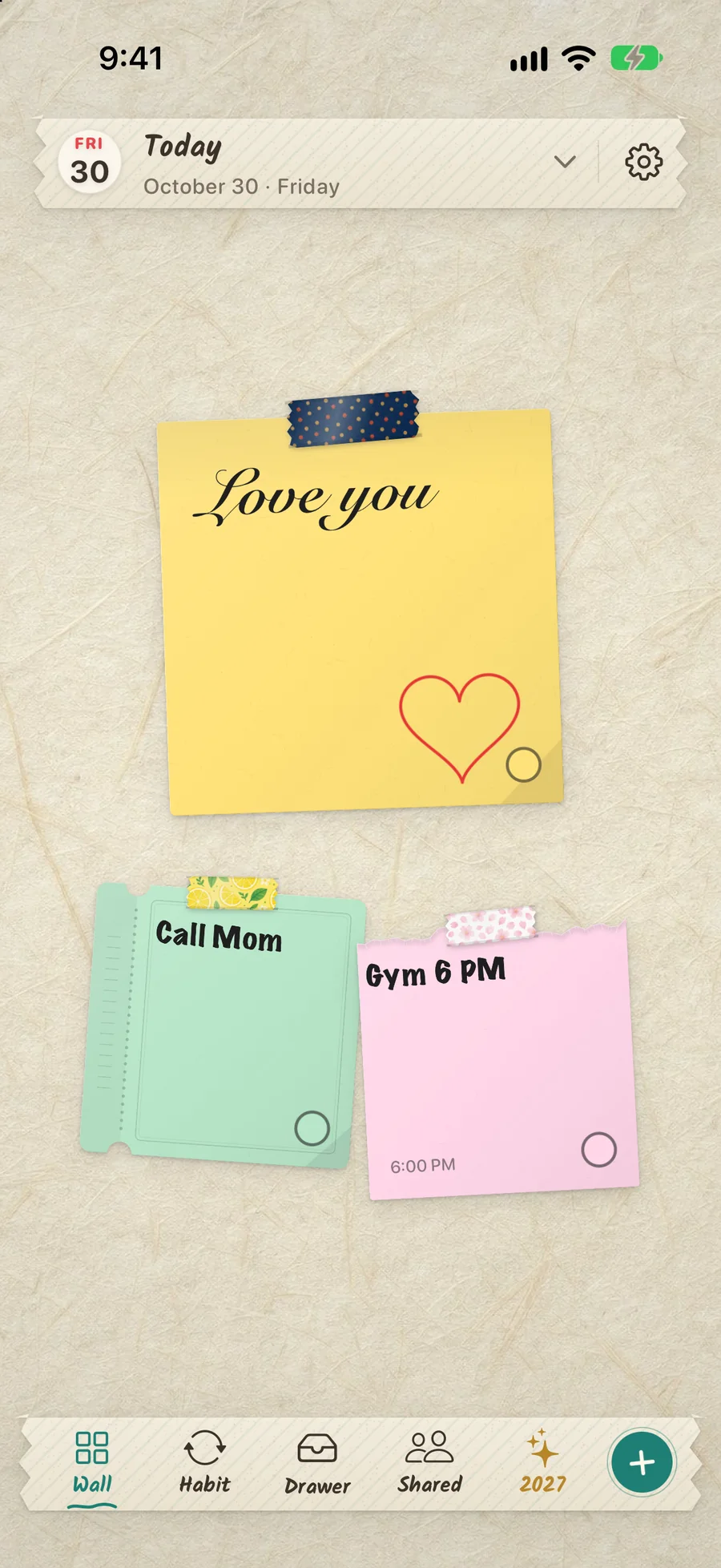
That’s how DailyWall works. It’s an iPhone and iPad app where every day has its own wall of paper notes, with handwriting styles, washi tape and stickers. After a one-time Shortcuts setup, the wall becomes your Lock Screen wallpaper and refreshes when you close the app, so ticking off a task updates what you see under the clock. Nothing is saved to your Photos library. Notes can have a time and a reminder, and there are Home Screen and Lock Screen widgets too. For more design ideas, see our aesthetic Lock Screen wallpaper ideas.
Tick the steps as you go
Questions people ask
What are some hidden iPhone features?
Useful ones include the space-bar trackpad, Text Replacement, three-finger undo, Live Text, lifting subjects from photos, Back Tap, Send Later in Messages, locking apps with Face ID, the charging limit on newer models and Lock Screens linked to Focus modes.
What is Back Tap on iPhone?
Back Tap lets you double-tap or triple-tap the back of your iPhone to run an action, such as taking a screenshot or running a shortcut. Set it up in Settings → Accessibility → Touch → Back Tap (iOS 14 and later, iPhone 8 and newer).
How do I move the cursor precisely on iPhone?
Touch and hold the space bar until the keyboard goes blank, then slide your finger. The keyboard works like a trackpad and moves the cursor wherever you want.
Can I schedule a text message on iPhone?
Yes, in iOS 18 and later. In Messages, tap + next to the text field, choose Send Later, pick the date and time, then write and send the message.
How do I lock an app on iPhone?
In iOS 18 and later, touch and hold the app icon and choose Require Face ID. The app then needs Face ID, Touch ID or your passcode to open.
Why can’t I find a setting mentioned in a tutorial?
Menus move between iOS versions, and some features need a newer iPhone. Check your iOS version in Settings → General → About and use the search field at the top of Settings to find the feature by name.