 DailyWall
Unlock your iPhone but stay on the Lock Screen, touch and hold it, then tap Customize and choose the Lock Screen (or tap + to make a new one). Tap the clock to change its font and colour, tap the widget area to add widgets, and tap Done. You can also go to Settings → Wallpaper to edit or add a Lock Screen.
To customize your iPhone Lock Screen, you don’t need Settings or a separate app: unlock with Face ID or Touch ID, stay on the Lock Screen, then touch and hold it. That opens the Lock Screen editor, where you can change the wallpaper, restyle the clock, add widgets, swap the buttons at the bottom and link the whole screen to a Focus. Apple has added to this editor with almost every iOS release since iOS 16, so menus move around a little between versions. This guide walks through each part in the order you’ll meet it, explains what changed in recent versions, and ends with the one thing the editor can’t do on its own: show your own notes and to-do list.
What you can change on the iPhone Lock Screen
Since iOS 16, the iPhone Lock Screen has been a set of layers you can edit separately. Knowing what each one does makes the editor much less confusing:
Everything on this list lives inside the same editor. The settings that aren’t visual, like how notifications are grouped or what works while the phone is locked, live in the Settings app, and we cover those near the end.
Tick the steps as you go
How to change your iPhone Lock Screen wallpaper
You can change the Lock Screen from the Lock Screen itself or from Settings. Both routes end in the same editor.
Tick the steps as you go
How to change the clock font and colour
The clock is the biggest thing on the Lock Screen, so changing it makes the most visible difference. In the editor, tap the time and a Font & Colour panel slides up.
On iOS 17 and later there’s a slider under the fonts that makes the numbers thinner or bolder. On iOS 26 and later the clock can also grow taller and adapt to the space in your photo, and there’s a translucent glass style that lets the wallpaper show through. Exact labels vary a little by version, but they all live in this same panel.
Tick the steps as you go
How to add widgets to your iPhone Lock Screen
Lock Screen widgets show small, glanceable information without unlocking: battery levels, the weather, your next calendar event, an Activity ring, a reminder count. There are two places for them.
Above the clock, the date line can hold one small text widget, such as the weather, your next alarm or a calendar event. Below the clock there’s a row with room for up to four small square widgets, two wide ones, or a mix. Third-party apps add their own widgets once they’re installed and opened at least once.
Tick the steps as you go
How to change the flashlight and camera buttons
For years the two buttons at the bottom of the Lock Screen were fixed. From iOS 18 you can swap them for other controls or remove them entirely, which also stops your pocket from turning the flashlight on.
Tick the steps as you go
Depth effect, filters and spatial photos
If your wallpaper is a photo, swipe left or right in the editor to try Apple’s photo styles. The names vary with the picture, but you’ll usually see Natural, Black & White, Duotone and Colour Wash, and for portraits a Studio look with a softer background.
Depth effect lets the subject of a photo, like a person, a pet or a mountain top, overlap the bottom of the clock. iOS turns it on automatically when it finds a clear subject; you can switch it off in the ••• menu in the corner of the editor. It works best when the subject sits in the middle of the screen and doesn’t cover too much of the time. On some versions, adding widgets under the clock can turn the effect off, because the subject would collide with them.
On iOS 26 and later, supported iPhones can also turn a photo into a spatial scene: a 3D version that shifts slightly as you move the phone. Look for the spatial scene button while editing a photo wallpaper; if you don’t see it, your photo or model may not support it.
Photo Shuffle and multiple Lock Screens
Photo Shuffle rotates through a set of pictures. When you create it, iOS can pick photos for you by topic (people, pets, nature, cities) or you can select them yourself. In the editor, tap the ••• button to set how often it changes: on tap, on lock, hourly or daily.
You can also keep several Lock Screens and switch between them, a bit like outfits. Touch and hold the Lock Screen and swipe through the gallery to choose one. To delete a Lock Screen you no longer want, swipe up on it in the gallery and tap the bin icon. Keeping three or four ready-made screens, for example a work one, a weekend one and a sleep one, is quicker than editing a single screen over and over.
Link a Lock Screen to a Focus
This is the most underused part of the editor. When you link a Lock Screen to a Focus, switching on that Focus also switches the Lock Screen, and switching to that Lock Screen turns the Focus on. A calm, dark Sleep screen at night and a busy work screen with your calendar widget during the day happen without you touching anything.
Tick the steps as you go
Lock Screen settings outside the editor
A few Lock Screen options aren’t in the editor at all. These are the ones worth checking once:
Tick the steps as you go
Put your own notes and to-do list on the Lock Screen
Everything above changes how the Lock Screen looks. None of it lets you write on it. There’s no built-in way to put a shopping list, today’s three tasks or a note in your own words under the clock, and widgets are too small to hold more than a line.
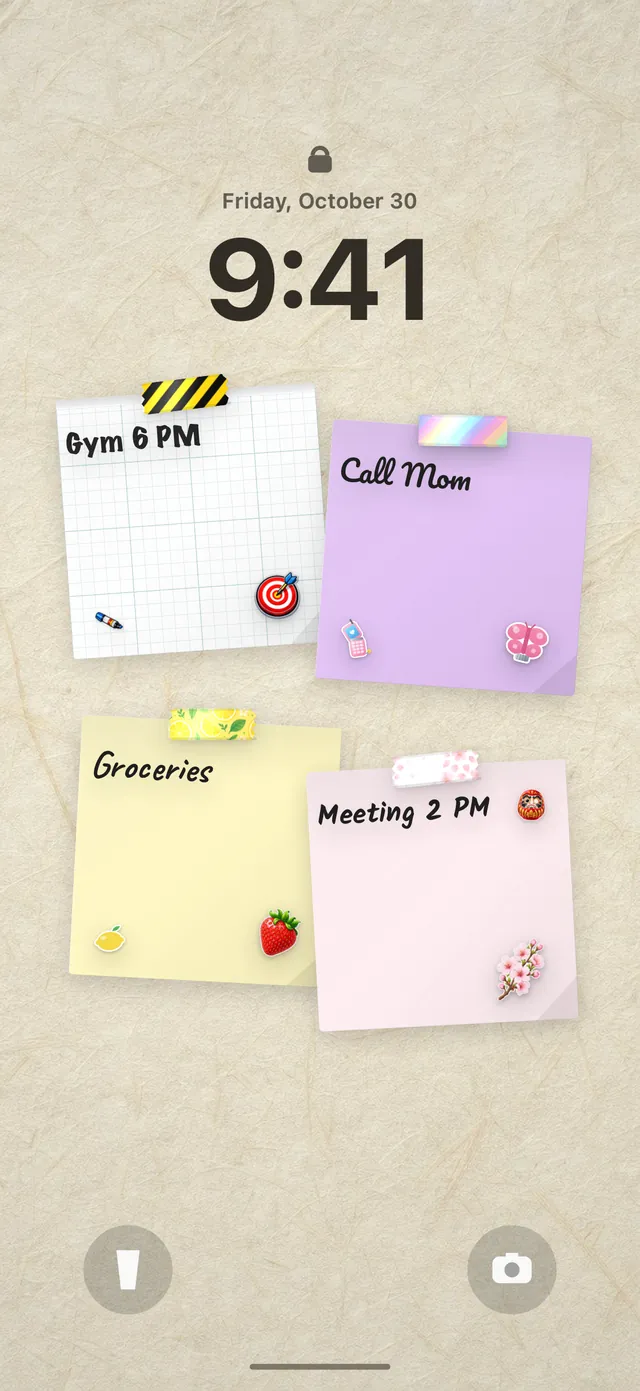
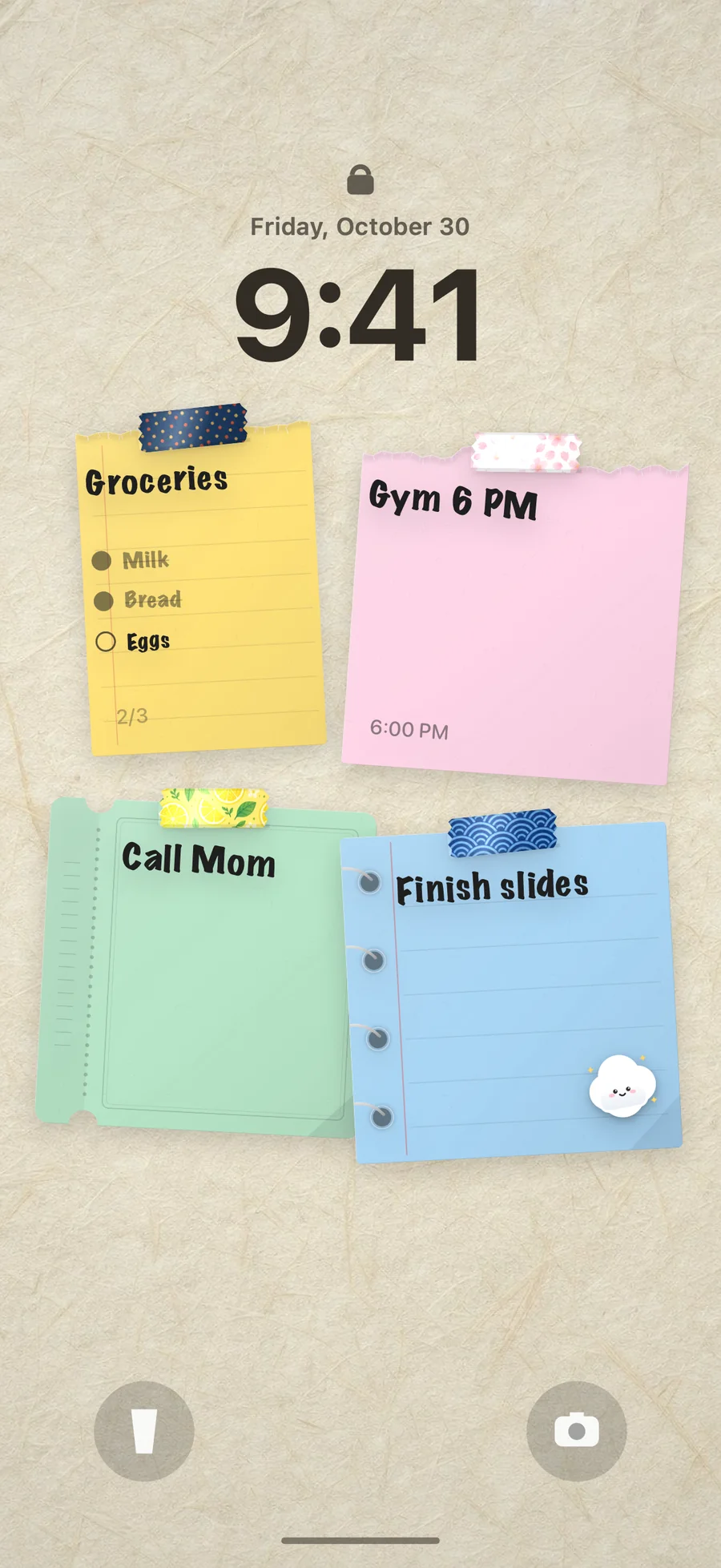
The workaround is to make the note part of the wallpaper. DailyWall does that on iPhone and iPad: you write paper notes and checklists on a wall for each day, decorate them with handwriting styles, washi tape and stickers, and the wall itself becomes your Lock Screen wallpaper. A Shortcuts automation you set up once keeps it updated, so when you tick something off, the Lock Screen follows. Nothing is saved to your Photos library. Our guide on how to put notes on your iPhone Lock Screen compares all the methods.
Tick the steps as you go
Questions people ask
Why can’t I customize my iPhone Lock Screen?
Usually the phone isn’t unlocked yet: you have to unlock with Face ID or Touch ID while staying on the Lock Screen before touch and hold works. The editor also needs iOS 16 or later. If it still won’t open, try Settings → Wallpaper → Customize.
How do I change my Lock Screen without changing my Home Screen?
When you tap Add on a new wallpaper, choose Customize Home Screen instead of Set as Wallpaper Pair, then pick a different photo, colour or blur for the Home Screen.
How many widgets can I put on the iPhone Lock Screen?
One small widget beside the date above the clock, and a row under the clock with up to four small widgets, two wide ones, or a mix.
Why did the depth effect stop working on my wallpaper?
Depth effect needs a clear subject that doesn’t cover too much of the clock. On some iOS versions it turns off when widgets sit under the clock. Try moving the photo down, removing widgets, or checking the ••• menu.
Can I make my Lock Screen change automatically?
Yes, in three ways: Photo Shuffle changes the photo on tap, on lock, hourly or daily; linking Lock Screens to Focus modes switches them on a schedule; and apps like DailyWall update a notes wallpaper whenever your list changes.
How do I delete a Lock Screen on iPhone?
Touch and hold the Lock Screen, swipe to the one you want to remove, swipe up on it and tap the bin icon.
Can I write text on my iPhone Lock Screen?
Not with the built-in Lock Screen editor; it has no text box. To show your own text, make it part of the wallpaper, either as a one-off image or with an app such as DailyWall that keeps it updated.