 DailyWall
Choose one colour palette and one wallpaper, then keep a single main page with only the apps and widgets you use daily. On iOS 18 and later, touch and hold the Home Screen, tap Edit, then Customize to switch icons to dark or tinted (and, on newer versions, clear). Move everything else to the App Library and finish with one useful widget, such as today’s notes.
Aesthetic iPhone Home Screen ideas usually start with a pretty wallpaper and end three days later with a cluttered grid of red badges. The trick is to design the Home Screen the way you’d design a room: pick a mood, decide what deserves the best spot, and hide everything else. Below you’ll find twelve aesthetic Home Screen ideas, eight iPhone Home Screen layout ideas you can copy, and the exact steps for the tools iOS already gives you: dark, tinted and clear icons, custom icons with Shortcuts, widget stacks, hidden pages and a wallpaper that matches your Lock Screen. Version hints are included, because some of these options only appeared in recent iOS releases.
What makes an iPhone Home Screen look aesthetic (and still work)
An aesthetic Home Screen isn’t about having the most widgets or the rarest icon pack. It looks good for the same reasons a tidy desk looks good: a limited colour palette, some empty space, and things lined up with a clear purpose. When you look at the Home Screens people share as inspiration, almost all of them follow three rules.
One palette. Two or three colours that repeat across the wallpaper, widgets and icons. Beige and brown, black and white, sage and cream, pastel pink and lilac. The palette does more for the look than any single element.
Breathing room. A full grid of 24 icons will never look calm. Leave a row or two empty, or let the wallpaper show through between a widget and the Dock.
Function first. The things you open ten times a day belong where your thumb rests. A Home Screen that looks beautiful but makes you search for the camera won’t last. Keep that in mind as you go through the ideas below: the best setups look intentional because they are.
12 aesthetic iPhone Home Screen ideas
Use these as starting points. Each one names a mood, the colours that make it work and the kind of widget that fits it.
Tick the steps as you go
8 iPhone Home Screen layout ideas you can copy
The layout matters as much as the colours. These iPhone Home Screen layout ideas are about where things go, so you can combine any of them with any of the moods above. On iOS 18 and later you can place app icons and widgets anywhere on the grid, leaving gaps, which makes most of these much easier to build.
Tick the steps as you go
How to change app icon colours: dark, tinted and clear icons
Changing app icon colours used to mean building every icon yourself. Since iOS 18 there’s a built-in way to make all icons match, and newer versions add more looks. The menu names below are the ones Apple uses; the exact layout of the panel can differ slightly between versions.
Tick the steps as you go
Custom app icons with the Shortcuts app
If you want icons in a specific style (hand-drawn, a photo, a single letter), the Shortcuts app can create a Home Screen bookmark with any image you choose. It’s a bit of work for a full page, so most people only do it for the five to eight apps they see every day.
One honest drawback: these are shortcuts, not the real app icons, so they don’t show notification badges, and you may briefly see a Shortcuts banner when you open them. Keep the real app in the App Library so nothing is lost.
Tick the steps as you go
Widgets: stacks, sizes and where to put them
Widgets give a Home Screen most of its personality, and most of its clutter. A good rule is one large or two medium widgets per page at most. Everything else can live in a stack.
To add one, touch and hold the Home Screen, tap Edit and then Add Widget, search for the app and pick a size. On iOS 18 and later you can also resize a widget in place by dragging the handle in its corner. To build a stack, drag one widget of the same size on top of another; you can then swipe through them, and the Smart Rotate option lets iOS show the widget it thinks you need.
Think about what each widget is for. A photo widget is pure mood. A calendar, weather or battery widget gives quick information. A notes or to-do widget shows your own words, which is the one thing a stock widget can’t. If you only keep one widget on your main page, make it something you actually read, like today’s list. Our guide to aesthetic widgets for iPhone has thirty sticky-note styles that fit the moods above.
Match your wallpaper: Home Screen and Lock Screen as a pair
On iPhone, a wallpaper is set as a pair: one for the Lock Screen and one for the Home Screen. When you add a new wallpaper, iOS asks whether to set it as a pair or customise the Home Screen separately. Customising lets you keep a busy photo on the Lock Screen and use a softer version behind your apps.
For the Home Screen, a blurred version of your Lock Screen photo or a plain colour or gradient taken from it works almost every time. Icons and widgets stay readable, and the two screens still feel related. In the wallpaper editor, the Home Screen side has options to blur the image or switch to a colour.
For wallpaper ideas, our aesthetic Lock Screen wallpaper ideas cover cute, minimal and cosy styles, and the step-by-step guide to customizing your iPhone Lock Screen explains fonts, widgets and the wallpaper editor in detail.
Clean up: hidden pages, the App Library and Focus
The calmest Home Screens aren’t the ones with the fewest apps installed; they’re the ones that hide the rest well. iOS has three tools for this.
The App Library is the last page you reach by swiping left. Every installed app lives there, sorted into categories, with search at the top. Removing an app from the Home Screen (touch and hold, Remove App, then Remove from Home Screen) keeps it installed and available in the library. To keep new apps off your Home Screen, look for Home Screen & App Library in Settings (the path has moved around between iOS versions) and choose to add new apps to the App Library only.
Hidden pages. In edit mode, tap the row of dots above the Dock. You’ll see every Home Screen page and can untick the ones you want to hide without deleting anything.
Focus pages. In Settings, open Focus, choose a Focus such as Work or Personal, and under Customize Screens pick which Home Screen pages appear while that Focus is on. Combined with a Focus schedule, your work page appears at 9 and disappears at 6 by itself.
Tick the steps as you go
Add a notes widget that shows today with DailyWall
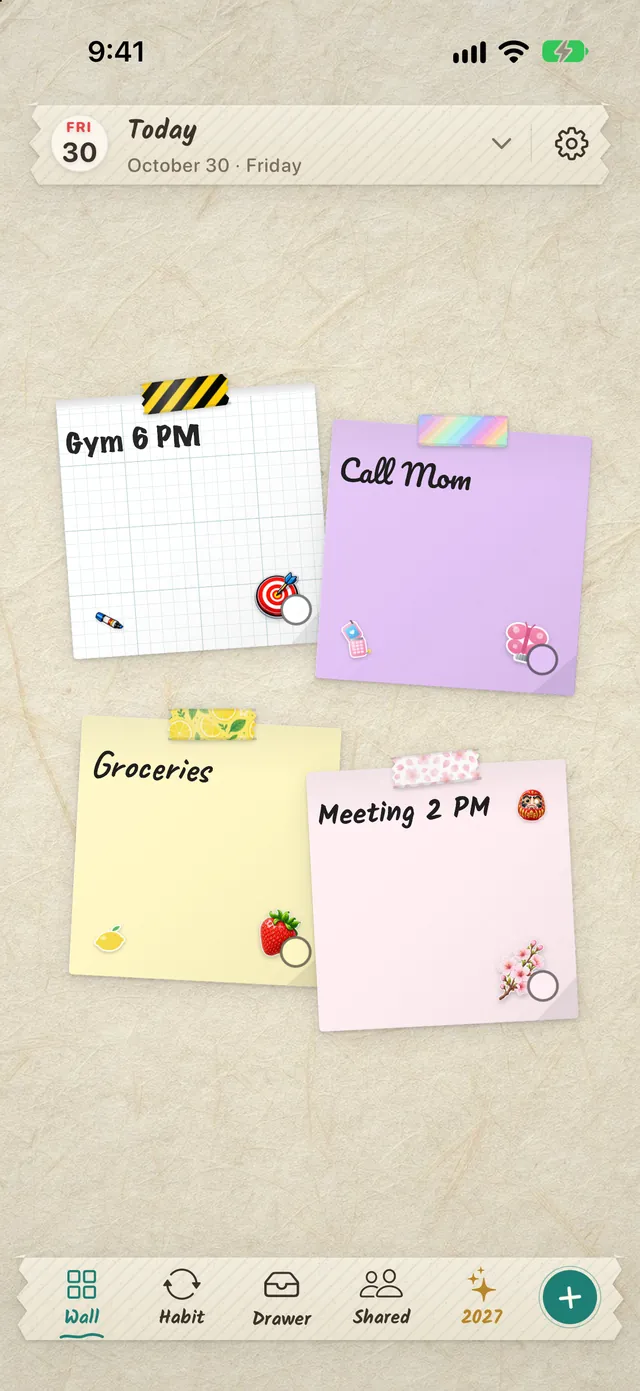
Once the Home Screen looks calm, the most useful thing to add is something personal: your own notes and to-do list, in a style that matches the page. That’s where DailyWall fits in. It’s an iPhone and iPad app where every day has its own wall of paper notes, with handwriting styles, washi tape, stickers and wall themes, so a notes widget can be as aesthetic as the rest of your setup.
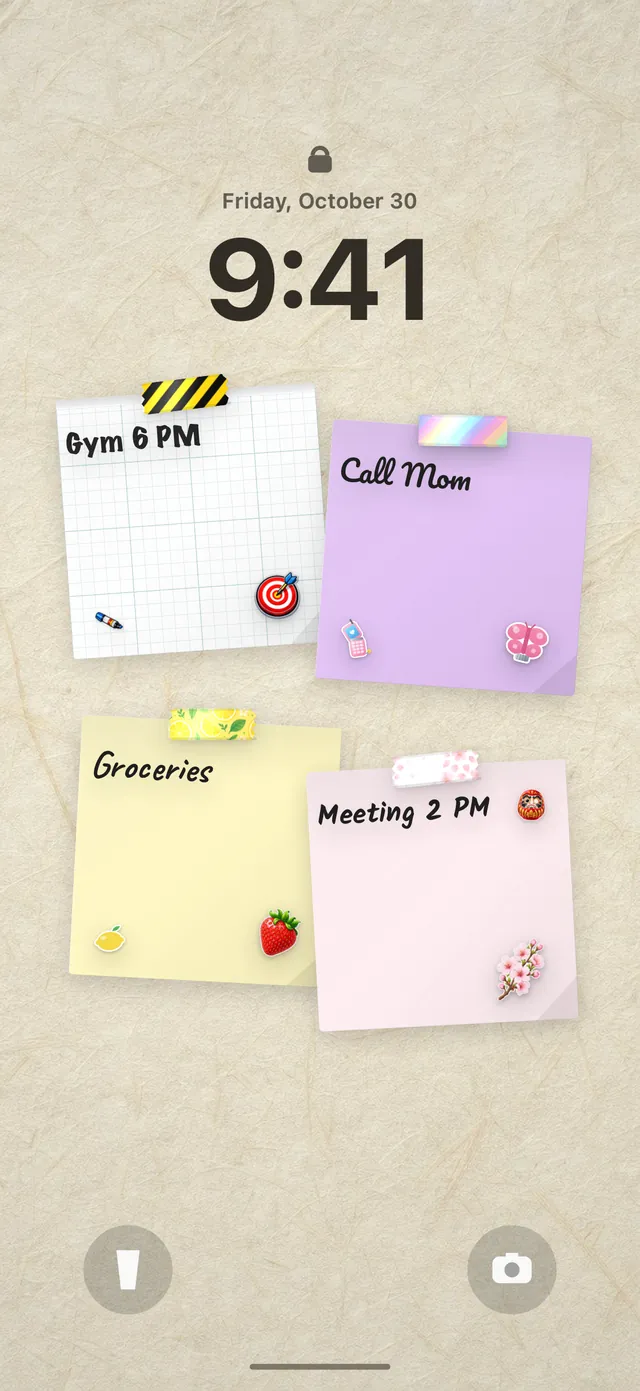
The Home Screen widget comes in small, medium and large and shows today’s notes as they look on your wall. You can tap the ring on a note in the widget to mark it done without opening the app. The same wall can also become your Lock Screen wallpaper through a Shortcuts automation you set up once, so your Lock Screen and Home Screen tell the same story.
Tick the steps as you go
Questions people ask
How do I make my iPhone Home Screen look aesthetic?
Pick one colour palette, use a matching wallpaper, keep one main page with only the apps you use daily, and add one or two widgets. On iOS 18 and later, tinted icons make every app the same colour in a few taps.
How do I change app icon colours on iPhone?
Touch and hold the Home Screen, tap Edit, then Customize. Choose Dark, Tinted (and pick a colour) or, on newer iOS versions, Clear. For fully custom icons, create Open App shortcuts in the Shortcuts app and add them to the Home Screen with your own image.
Can I leave empty spaces on my iPhone Home Screen?
Yes. Since iOS 18 you can place apps and widgets anywhere on the grid and leave gaps, for example to keep the top half of the screen free for your wallpaper.
How do I hide apps from my Home Screen without deleting them?
Touch and hold the app, choose Remove App, then Remove from Home Screen. The app stays installed in the App Library. You can also hide a whole page by tapping the page dots in edit mode.
What is a good iPhone Home Screen layout?
A single main page with your most-used apps in the bottom half, one useful widget, four favourites in the Dock and everything else in the App Library. It’s easy to reach with one hand and looks calm.
Can I have different Home Screens for work and personal time?
Yes. Create a Focus in Settings, then under Customize Screens choose which Home Screen pages show while that Focus is on. Add a schedule and the right page appears automatically.